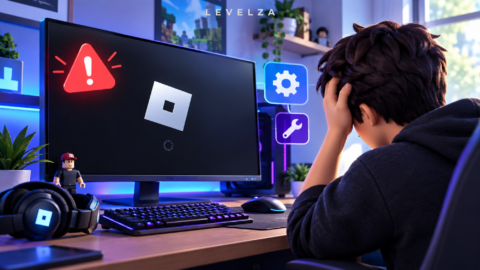

You click Join on an experience, the loading screen freezes partway through handshake negotiation, and roblox error code 279 terminates the session with the dialog “Failed to connect to the Game. (ID=17: Connection attempt failed. Error Code: 279)”. Unlike a crash or a corrupted install, roblox error code 279 leaves the client running perfectly — it simply never receives the server’s reply.
That is exactly what makes it the most misdiagnosed connection failure in the community. While running Roblox on modern hardware is generally stable, network handshake barriers frequently interrupt client authentication, and the error message itself gives no indication of whether the block sits in your Windows firewall, your router’s NAT table, your DNS resolver, or on the platform’s own infrastructure.
LEVELZA analyzed client socket logs, packet-routing traces, and firewall port collisions to outline the verified resolution path below.
LEVELZA QUICK FIX
Core Diagnostic Root Cause: A client-side UDP socket handshake timeout (ID=17), triggered when local Windows Defender rules, router NAT tables, or third-party DNS servers drop packets routed through Roblox’s dynamic gaming port range.
Immediate Action Steps:
- Whitelist
RobloxPlayerBeta.exein both the inbound and outbound rules of Windows Defender Firewall. - Flush the local DNS resolver cache with
ipconfig /flushdns, then point the adapter at public resolvers — Cloudflare1.1.1.1or Google8.8.8.8. - Purge stale session tokens and partial map fragments by clearing
%localappdata%\Roblox\Downloads.
Escalation Trigger: If the error persists across multiple distinct experiences rather than one, check the official platform status channels for a central outage or ISP-level transit throttling before changing any router hardware settings.
Why Error Code 279 Happens: The Root Causes
Three separate failure vectors produce the same dialog box, which is why a fix that works for one player does nothing for another. Network trace analysis indicates the following distinct causes.
1. UDP Socket Negotiation and Port Filtering (ID=17)
Loading the website and signing in happen over standard TCP traffic on ports 80 and 443 — the same channel as ordinary web browsing. Active gameplay does not.
Once you join an experience, the client switches to UDP across the high dynamic port range, UDP 49152–65535, because real-time position and physics data cannot tolerate TCP’s retransmission delays.
If a home router’s stateful packet inspection, a campus or workplace firewall, or a restrictive ISP gateway drops inbound UDP in that range, the client transmits its join request and then waits for acknowledgment packets that never arrive. The watchdog timer expires and the session is dropped with ID=17.
This is why the website works flawlessly while every experience fails. The two use fundamentally different transport paths, and only one of them is being filtered.
2. Corrupted Local Asset Cache and Stale Handshake Tokens
The client performs integrity checks against locally cached experience assets before completing the connection. When a previous session was interrupted mid-download, partially written files remain in %localappdata%.
The engine then stalls trying to validate fragments that will never verify, and the connection watchdog trips for the same reason as a network block — no completed handshake inside the timeout window.
Stale session tokens compound this. A token issued during a prior sign-in that was never cleanly released can be presented to the matchmaking dispatcher and rejected, producing the identical error on an otherwise healthy network.
3. DNS Resolution Latency and Extension Injection
Slow or filtered DNS lookups delay the resolution of the server endpoint long enough that the handshake window closes before the connection is even attempted. Public Wi-Fi portals and some consumer ISP resolvers are consistent offenders here.
Browser extensions create a different failure. Ad blockers, script injectors, and third-party enhancement suites such as RoPro or BTRoblox modify the web-to-protocol launch token as the page hands off to the client.
When the token the executable receives no longer matches the one the web session issued, the handshake is rejected at authentication rather than at the network layer — same error code, entirely different cause.
Step-by-Step Fixes for Roblox Error Code 279
Work through these in order. They are sequenced from the most frequently effective fix to the least, so stop as soon as a connection succeeds.
Fix 1: Whitelist Roblox Executables in Windows Defender Firewall
- Open Control Panel > System and Security > Windows Defender Firewall.
- In the left sidebar, click Allow an app or feature through Windows Defender Firewall.
- Click Change settings — this requires administrator privileges on the account.
- Locate Roblox in the list. If it is absent, click Allow another app… and browse to
%localappdata%\Roblox\Versions\[LatestVersion]\RobloxPlayerBeta.exe. - Tick both the Private and Public checkboxes, then click OK.
Ticking only Private is the most common mistake. Many home connections are classified as public networks by Windows, so a private-only rule leaves the UDP path blocked exactly where it matters.
Fix 2: Flush DNS and Switch to High-Performance Resolvers
- Press Windows Key + S, type
cmd, right-click Command Prompt, and choose Run as administrator. - Run these commands in sequence:
ipconfig /flushdns, thennetsh winsock reset, thennetsh int ip reset. - Open Settings > Network & Internet > Advanced network settings > More network adapter options.
- Right-click your active Ethernet or Wi-Fi connection, select Properties, then double-click Internet Protocol Version 4 (TCP/IPv4).
- Set Preferred DNS server to
1.1.1.1and Alternate DNS server to1.0.0.1for Cloudflare, or8.8.8.8and8.8.4.4for Google. - Click OK and restart the machine — the Winsock reset does not take effect until reboot.
Fix 3: Purge the Corrupted Cache and Rebuild Client Assets
- Press Windows Key + R to open the Run dialog.
- Type
%localappdata%\Robloxand press Enter. - Delete the contents of the Downloads and logs subfolders to clear fragmented world assets and stalled session logs.
- For a deep reset on a recurring failure, delete the parent
%localappdata%\Robloxfolder entirely and reinstall the client from the official dashboard.
Deleting these folders removes cached assets only. Account data, inventory, and avatar configuration are server-side and are not affected.
Fix 4: Disable Script Extensions and Reset Browser Protocol Handlers
- Open your browser’s extension settings and temporarily disable every third-party Roblox helper — RoPro, BTRoblox, and ad blockers included.
- Clear cookies and cached images scoped to
roblox.com. - As a direct test, launch the experience from the standalone desktop application rather than through a browser link.
If launching from the desktop app succeeds while the browser route fails, the cause is confirmed as token interference and you can re-enable extensions one at a time to identify the offender.
Warning — When These Fixes Cannot Apply
Server-side instance crashes: When a community experience’s server script enters an infinite loop, leaks memory, or exceeds its allocated memory cap, the instance stops accepting new socket connections. If the error appears in one experience but others connect instantly, the fault is entirely inside that experience’s code and no local change will fix it.
Central authentication outages: During platform-wide maintenance or cloud infrastructure failures, the matchmaking dispatch system itself fails. Verify status through official channels before altering router hardware — reconfiguring a working gateway during an outage creates a second problem to undo later.
Moderation and IP restrictions: Addresses flagged for abusive traffic or for participating in unauthorized automation have their connection packets dropped silently at the edge gateway. There is no local remedy for this condition; it resolves only through official support.
Advanced Escalation: Router NAT and Official Support
If all four fixes fail and other experiences also refuse to connect, the block sits at the gateway rather than on the machine.
Sign into your router’s administration panel and set the NAT type to Open, or enable UPnP so the client can negotiate its own dynamic port mappings. UPnP is the lower-effort option and resolves most consumer-router cases without manual rules.
Where UPnP is unavailable or disabled by ISP policy, forward UDP ports 49152–65535 to the affected machine’s local IP address. Assign that machine a static DHCP reservation first, otherwise the rule detaches the next time the lease renews.
Tip — Isolate the Network in Sixty Seconds
Before touching any router configuration, tether the PC to a mobile hotspot and attempt the same join. A successful connection over cellular confirms the fault is your home or campus network, not the client, the account, or the experience. A failure on both networks points instead to the local machine or the platform itself — and saves you from reconfiguring a gateway that was never the problem.
Restrictive campus, workplace, and guest networks frequently block the dynamic UDP range at the institutional level, where no consumer-side setting can override the policy. In those environments, the hotspot result is the diagnosis and the only remedies are a network administrator exception or a different connection.
When local diagnostics are exhausted, submit a support ticket through the official help channels with your client log files from %localappdata%\Roblox\logs, the exact experience URL, and the approximate timestamps of the failures. For platform setup references and installation paths across devices, see the canonical Roblox hub.
Frequently Asked Questions
What does Roblox Error Code 279 (ID=17) specifically mean?
It depends on the layer that failed, but the code itself is precise: ID=17 signifies a connection attempt failure, meaning the client requested access to an active server instance and received no response within the timeout threshold. The request was sent successfully — the reply never arrived or arrived too late.
Can an antivirus program trigger Error Code 279?
Yes. Aggressive web protection shields and third-party firewalls routinely misidentify the client’s dynamic UDP traffic as suspicious activity and drop the socket packets. Adding the client executable to the security suite’s exclusion list, not just the Windows firewall, resolves this category of failure.
Does changing DNS servers fix Error Code 279 on mobile devices?
Yes. Updating the DNS settings on iOS or Android, or enabling an encrypted resolver such as 1.1.1.1, resolves lookup timeouts caused by restrictive mobile carriers and filtered public Wi-Fi. The setting is applied per network on both platforms, so it must be configured for each Wi-Fi connection separately.
Why do I get Error Code 279 on only one specific game?
No local fix will help in that case. When one experience fails while others launch normally, the developer’s server script has almost certainly hit a fatal initialization error or exhausted its allocated server memory, leaving the instance unable to accept new connections. Rejoining through a different server instance sometimes works; otherwise the fix must come from the creator.